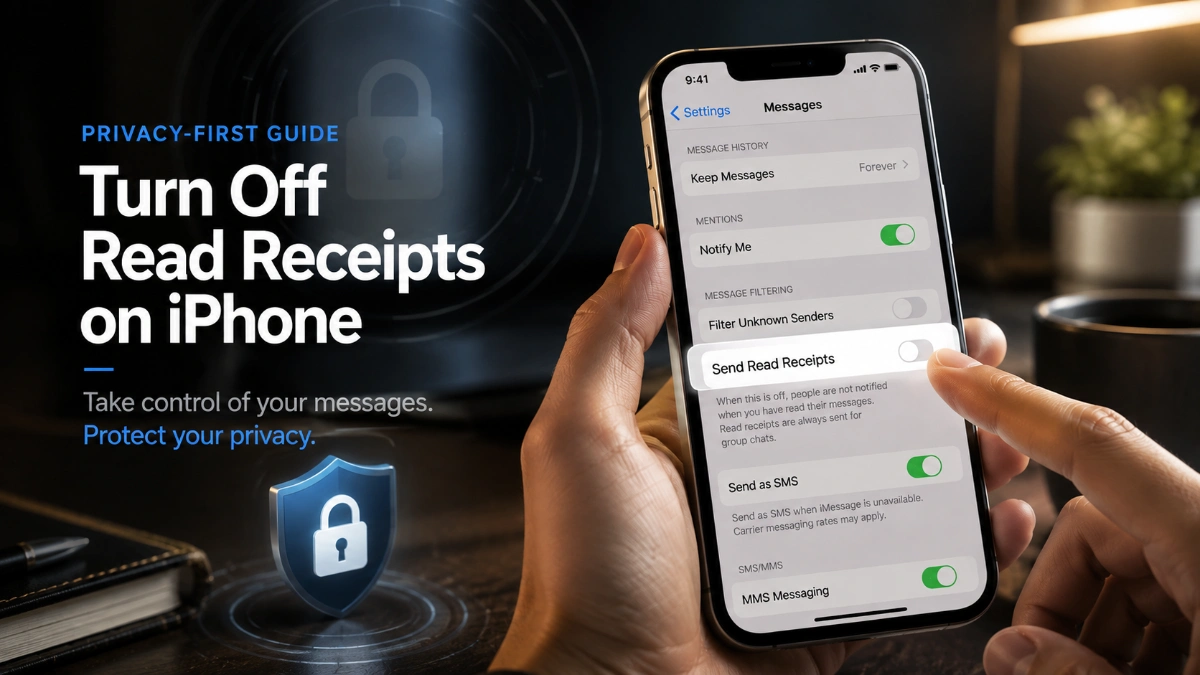

how to turn off read receipts iphone: A Privacy-First Setup Guide
Picture this: a friend messages you, you glance at it, and seconds later they text back “I know you saw that.” That small moment of exposure is exactly what drives most people to search for how to turn off read receipts iphone — and the good news is that Apple gives you far more control than a single on/off switch.
The Anxiety Behind “Read”
Every time you open an iMessage, the sender can potentially see a small timestamp confirming you viewed it. This is the read receipt, and it only applies to iMessages, generally shown with blue bubbles. Regular SMS or MMS texts, usually shown in green, don’t carry this feature at all.
how to turn off read receipts iphone: A Privacy-First Setup Guide
For many users, the discomfort isn’t the technology itself — it’s the social pressure that comes with being visibly “caught” reading a message.
Setting Your Default: Off for Everyone
The most direct route to how to turn off read receipts iphone is the global switch, which resets your default behavior across every iMessage conversation.
- Open Settings.
- Tap Apps, then Messages.
- Find Send Read Receipts.
- Toggle it off.
Once you complete this, your iMessages will show as Delivered rather than Read for anyone whose conversation doesn’t have a separate contact-level preference. This is the foundation of a privacy-first setup: start from “off,” then add exceptions only where you want them.
The Pro Move: Exceptions for Specific People
Here’s what many guides skip when explaining how to turn off read receipts iphone: the per-conversation setting doesn’t just turn receipts off for someone — it can override your global default in either direction.
That means you can leave the master switch off and still let one or two close contacts know when you’ve read their texts. To do this:
- Open the conversation in Messages.
- Tap the contact’s name or photo at the top.
- Turn on Send Read Receipts for that person only.
Everyone else stays under your global “off” setting, while that one contact gets the exception. This works the opposite way too — if your global setting is on, you can turn it off for one specific person without changing anything else.
An Alternate Path: The Contacts App
If you’d rather manage this from someone’s contact page instead of inside a chat thread, Apple supports that too. Open the Contacts app, select the person, tap the message icon, then tap their profile icon and adjust Send Read Receipts from there. This is functionally identical to changing the setting from within a conversation — just a different entry point for the same control, which is useful if the Messages option ever feels harder to locate.
What Changes on the Sender’s End
After you finish how to turn off read receipts iphone, the person you’re texting typically still sees Delivered, confirming the message reached your device. What disappears is the Read label and the timestamp showing exactly when you opened it.
Nothing else changes: messages still arrive normally, notifications still fire unless you separately mute them, and typing indicators are unaffected — they’re a completely separate feature from read receipts.
Where Read Receipts Simply Don’t Apply
| Conversation Type | Read Receipts Available? |
| One-to-one iMessage (blue bubble) | Yes, adjustable globally or per contact |
| SMS/MMS (green bubble) | No |
| Group chats | No, regardless of iMessage or SMS |
| Third-party apps (WhatsApp, Instagram, etc.) | No — each app manages its own setting |
Group threads are a common source of confusion. No matter how you configure how to turn off read receipts iphone individually, that setting simply doesn’t extend to group conversations — Apple hasn’t built read receipts into group messaging at all.
When Things Don’t Work as Expected
Sometimes a contact insists they can still see your read status even after you’ve gone through the steps for how to turn off read receipts iphone. In nearly every case, this comes down to a leftover per-contact setting that hasn’t caught up with your global change.
To check:
- Open your conversation with that person.
- Tap their contact icon.
- Confirm Send Read Receipts is switched off specifically for them.
- Tap Done.
If receipts are still slipping through after that, there have been isolated reports of syncing glitches where the toggle doesn’t apply consistently, particularly right after an iOS update. A quick fix is toggling the setting off, then on, then off again, or restarting the device and confirming the change stuck.
Beyond Read Receipts: Rounding Out Your Privacy Setup
Once you’ve nailed down how to turn off read receipts iphone, a few related settings round out a more private Messages experience:
- Hide Alerts — mutes notifications for a specific thread without leaving or deleting it.
- Notification previews — control whether message text appears on your Lock Screen.
- Unknown sender filtering — separates messages from people not in your contacts.
- Blocking — stops messages from a specific number entirely.
None of these replace read receipts control, but together they give you a fuller picture of what Messages lets you manage.
The Bottom Line
You don’t have to choose between total exposure and total secrecy. Understanding how to turn off read receipts iphone as a layered system — one global switch plus unlimited individual exceptions — means you can share your read status with people who matter and keep it private from everyone else, all without leaving the Messages app.
Read also: How to turn off read receipts iphone: Control Who Sees You Read Messages
Frequently Asked Questions
No. Even with read receipts off, the sender typically still sees “Delivered,” just not “Read.”
Yes. Turn off the global switch in Settings, then enable it individually inside that one contact’s conversation.
Yes, through the Contacts app: open the person’s contact page, tap the message icon, then their profile icon, and adjust Send Read Receipts.
They likely have a leftover per-contact override still turned on, which needs to be switched off separately in that conversation.
No. Group conversations don’t support read receipts regardless of any individual or global setting.
No. The feature only works with iMessage; regular SMS/MMS never included it.
Try turning it off, back on, and off again, or restart your iPhone, since occasional syncing glitches have been reported.
Does this setting carry over to WhatsApp or other messaging apps?No. Apple’s read receipt control only affects Messages/iMessage; other apps manage this separately.
Yes, at any time, either globally in Settings or for individual contacts within their conversation.