
how to change iphone name: Rename It for Hotspot, AirDrop, and Bluetooth
A generic iPhone name can make nearby sharing, Bluetooth pairing, and Personal Hotspot connections harder to recognize. You can give the phone a clearer label in under a minute—and the same device name is used across iCloud, AirDrop, Bluetooth, Personal Hotspot, and computer connections.
Start With the One Setting That Matters
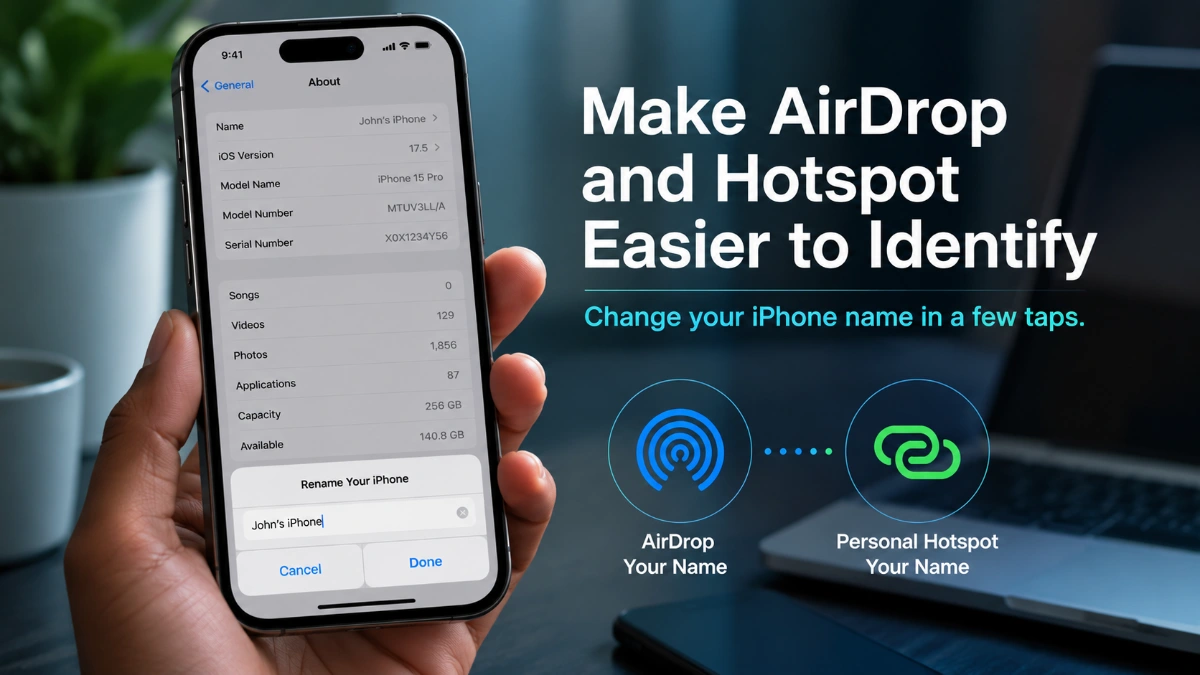
For anyone searching how to change iphone name, the answer is in the device-information section of Settings. Follow this path:
Settings → General → About → Name
Tap the existing name, type the replacement you want, and tap Done. The edit is saved to the iPhone immediately.
You can use a straightforward label such as “Nisha’s iPhone,” “Work Phone,” or “Travel iPhone.” The best choice is usually one you will recognize instantly in a list of nearby devices.
What Renaming Your iPhone Changes
The name is a device label, not your personal account identity. It helps Apple services and connected computers tell this iPhone apart from others.
After completing how to change iphone name, the new label is used in these places:
| Where it appears | Why it is useful |
| AirDrop | Helps nearby people identify the correct iPhone for a transfer |
| Bluetooth | Identifies the phone to compatible devices |
| Personal Hotspot | Names the hotspot that other devices look for |
| iCloud | Distinguishes the iPhone in your device list |
| Mac or Windows computer | Identifies the phone when it is connected |
Changing this label does not alter your Apple Account name, password, phone number, photos, contacts, messages, apps, or files.
Give Your Hotspot a Better Name
Personal Hotspot does not have a separate network-name control. Its name comes from the iPhone that is sharing the connection.
That makes how to change iphone name the practical way to rename a hotspot. If your laptop sees a vague network name, choose a name that makes the correct connection obvious without publishing personal details.
For example:
- Meera iPhone
- Home Backup Internet
- Work Mobile Data
- Travel Hotspot
If another device continues to display an older hotspot name, disconnect it, then turn Personal Hotspot off and back on before reconnecting.
Know What This Does Not Rename
The iPhone’s name belongs to the phone, not to every accessory paired with it. Renaming the phone will not rename your AirPods, headphones, speaker, keyboard, game controller, or vehicle system.
If a connected Bluetooth accessory supports renaming, manage its label separately:
- Open Settings.
- Select Bluetooth.
- Tap the information button next to the connected accessory.
- Choose Name.
- Enter the new label.
This distinction is useful when learning how to change iphone name: one setting identifies the handset, while accessory names are managed individually.
Check the New Name
The most reliable confirmation is the same place where you made the change:
Settings → General → About → Name
If your chosen label appears there, it has been saved. Then check the service relevant to your situation—such as your hotspot’s Wi‑Fi name, a nearby Bluetooth device list, AirDrop, or a connected computer.
Some devices store an earlier connection label. If an old name remains visible, try these simple checks:
- Disconnect and reconnect the affected device or service.
- Toggle Bluetooth or Wi‑Fi when that connection is involved.
- Restart both devices if the stored label does not refresh.
- Remove an outdated Bluetooth pairing only when reconnecting does not resolve the issue.
Pick a Name You Can Use Safely
A device name can be visible when sharing files or offering a hotspot, so clarity and privacy should work together. Avoid putting sensitive information into the name, particularly if you often connect in public places.
Good naming patterns include:
- First name + iPhone
- Work + iPhone
- Family + iPhone
- Purpose + device type
For multiple devices, keep the labels distinct. “Arjun iPhone,” “Arjun iPad,” and “Arjun Work Mac” are much easier to distinguish than three devices all named “iPhone.”
Related Apple Devices
The steps for how to change iphone name are specifically for an iPhone, but you can organize other Apple devices as well.
Rename an iPad
Use the same general path on an iPad:
Settings → General → About → Name
Rename AirPods
When AirPods are connected, open Settings, tap their name near the top of the screen, select the current name, and enter a replacement.
Rename a Bluetooth Accessory
A compatible connected accessory can be renamed from Settings → Bluetooth. Select its information button, then look for its name field.
Read more: How to Change iphone Name: Rename Your Device in a Few Taps
Frequently Asked Questions
Go to Settings → General → About → Name, edit the current label, and tap Done.
Yes. The hotspot name comes from the iPhone’s device name.
No. Your Apple Account identity and the name assigned to the physical iPhone are separate.
Yes. Repeat the same steps whenever you want a different device label.
That device may have retained an earlier connection label. Disconnect and reconnect, then restart if the name does not refresh.
No. It does not affect stored content, installed apps, contacts, photos, messages, or your account.
Yes. On an iPad, open Settings → General → About → Name.
No. Bluetooth accessories have separate naming controls when supported.
Yes. The iPhone device name is used to identify the phone in AirDrop.
Use a short label that you recognize without including a full legal name, address, phone number, or other sensitive details.