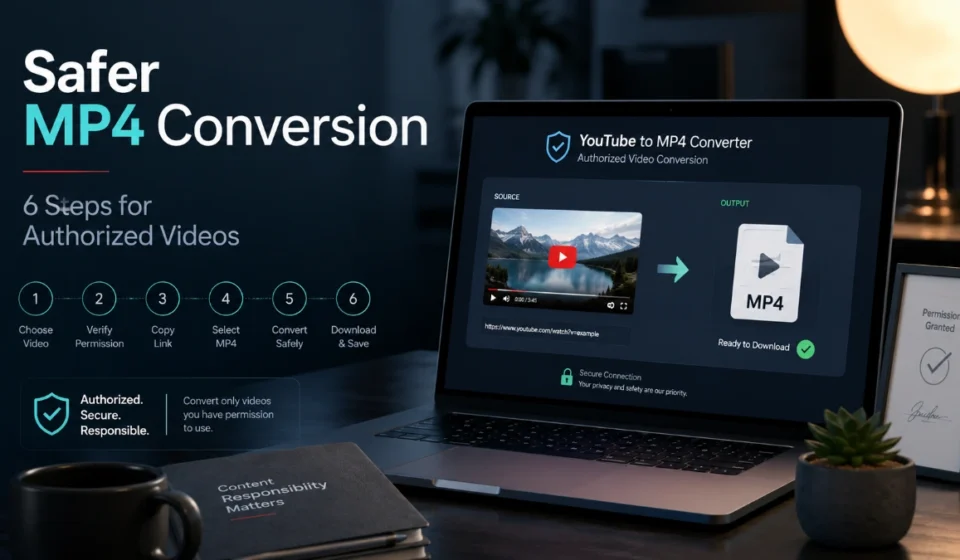

Youtube to mp4 Converter: 6 Smart, Safer Steps for Video Downloads
A youtube to mp4 converter is a tool or service that saves video in an MP4 file format. MP4 is a media container; it does not, on its own, define resolution, visual quality, subtitles, or the right to download a video.
Before using a youtube to mp4 converter, check that you are permitted to save the video and that YouTube provides an authorized route for the purpose. YouTube’s terms say users may not download content unless YouTube displays a download button or similar link for that content.
Use It Only When Appropriate
Publicly viewable video is not automatically downloadable, reusable, editable, or redistributable. A practical permission check should happen before you copy a link.
Use a youtube to mp4 converter only when at least one of these applies:
- You own the video and need a copy of your material.
- The copyright owner or creator has clearly authorized the download and intended use.
- A licence permits downloading and the use you plan to make of the file.
- YouTube offers a visible, official download option for that video and your account or location.
YouTube provides an official option for downloading many videos you uploaded through YouTube Studio. The available MP4 quality can depend on the video’s size and other conditions, and not every uploaded video is eligible.
For offline viewing alone, an official YouTube download feature may be more suitable than a separate video file. Those features can vary by region, device, account, content type, and service availability.
Know What MP4 Means
MP4 is the file wrapper that stores audio, video, and related media data. It is not the same thing as resolution: labels such as 360p, 720p, and 1080p describe the video image dimensions, while MP4 describes the file format.
That difference helps when choosing a youtube to mp4 converter. A larger resolution option may create a larger file, but it is not a guarantee of a visibly better result for every screen or source.
| Goal | Better priority | Practical choice |
| Casual phone viewing | Storage and easy playback | Choose a modest resolution that looks adequate on the device |
| Larger-screen playback | Source quality and display needs | Select a resolution that the original video and display can use meaningfully |
| Editing footage you own or license | File provenance and workable quality | Obtain the original file or an authorized creator-provided version where possible |
| Keeping an archive of your own content | Preservation and organization | Keep the original project or source file in addition to any platform download |
A youtube to mp4 converter changes the file you receive; it does not give you more authentic source detail than the video made available to it. For that reason, the highest setting is useful only when it fits the source and your intended playback or editing task.
Pick a Sensible Quality Setting
Start with your device and purpose, not the largest number in the menu. Higher-resolution options commonly require more storage and can take longer to transfer or process, while their visible benefit depends on the source and the screen you will use.
| Resolution choice | Usually practical for | Consider before selecting |
| 360p or similar | Small screens, low-storage devices, basic reference viewing | Detail will be limited on larger displays |
| 720p | General viewing on many devices | Uses more storage than lower-resolution copies |
| 1080p | Larger screens and detail-sensitive viewing when the source supports it | May be unnecessary for small screens |
| Higher resolutions | Large displays or creator-owned source footage available at that quality | File size can rise substantially without adding missing source detail |
When selecting a youtube to mp4 converter setting, ask one question: Will the extra file size make a noticeable difference for my device and purpose? If the answer is no, the smaller authorized option is usually the more efficient choice.
Follow a Safer Workflow
A responsible youtube to mp4 converter workflow starts before conversion, not after a link has been pasted.
- Confirm the right to save and use the video. Check ownership, permission, licence terms, or a visible official download option.
- Use an official source first. Download your own eligible uploads through YouTube Studio, or use YouTube’s supported offline feature where it meets your need.
- Match the output to the task. Select a resolution based on the original video, target screen, available storage, and whether you need to edit the file.
- Protect your device and accounts. Do not enter YouTube credentials into an unfamiliar site, install unexpected software, or act on pop-ups demanding urgent technical action.
- Review the download before opening it. Confirm the filename and file type are what you expected; avoid unrelated installers or additional extensions.
- Keep permission records for professional projects. Save licences, creator approvals, or client instructions with the file when the material will be edited, published, or used commercially.
The FTC advises consumers not to use unfamiliar websites to download free media and warns that deceptive links, ads, pop-ups, and unexpected software offers can be used to deliver malware or scams. If a download page asks for credentials, payment, remote access, or an unfamiliar installation, leave it rather than trying to work around the warning.
When a Download Fails
A youtube to mp4 converter failure is often easier to resolve when you identify the stage that caused it.
| What you see | Check first | Safer next action |
| The link is rejected | Link accuracy, video access, privacy status, or service support | Confirm that you are authorized to access the source and check for an official download method |
| The download does not begin | Browser download controls, storage capacity, or pop-up handling | Inspect the browser download panel and free space; do not disable browser protections |
| The file will not play | Whether the file completed, file type, or media-player compatibility | Verify the file size and try a trusted local player |
| Picture quality is disappointing | Source quality and chosen resolution | Compare with the original playback and choose a setting suited to the target display |
| The file is too large | Resolution selected | Use a smaller option when your screen and task do not need the extra detail |
| Audio or captions are missing | What the authorized source makes available | Check the original video or obtain the creator-provided source file |
If the same process repeatedly fails, treat that as a reason to stop rather than search for bypasses. Use an official offline feature, download your own eligible upload through YouTube Studio, or ask the creator for an authorized file.
Choose the Better Alternative
A youtube to mp4 converter is not always the best route.
- For your own uploads: Download from YouTube Studio when eligible, then retain the original recording or project export for future editing.
- For offline viewing: Use YouTube’s supported download features where available instead of looking for a reusable standalone file.
- For client, stock, or licensed assets: Get the source file directly from the rights holder or licensed platform, with the relevant usage terms.
- For video editing: Start with the original recording or a creator-provided master when possible, because it provides a clearer permissions trail and is generally the better production source.
This approach solves the underlying need—offline access, editing, or storage—without assuming that conversion is the correct solution in every case.
Read also: Youtube to mp4 Converter: Solve Download Needs Without Taking Unnecessary Risks
Frequently Asked Questions
The answer depends on the particular video, your permission to use it, applicable law, and YouTube’s terms. YouTube’s terms restrict downloading unless YouTube shows a download button or similar link for that content, so do not treat a public video as automatically available for separate download.
YouTube offers an official process for downloading eligible videos you uploaded through YouTube Studio. Availability and output quality can depend on the video and applicable conditions.
No. MP4 is a media-file format. Resolution, source quality, encoding, and your playback device determine how the video looks and performs.
Not necessarily. A higher-resolution file can use more storage, while the visible improvement depends on the quality of the available source and the screen on which you watch it.
No. YouTube’s supported offline features are designed for viewing within its supported experience and may be subject to location, account, device, and content conditions. They should not be assumed to provide a reusable standalone MP4 file.
Leave the site. Do not provide credentials to an unfamiliar service, install unexpected software, or bypass browser security warnings. Use an official option or obtain an authorized file directly from the creator or rights holder