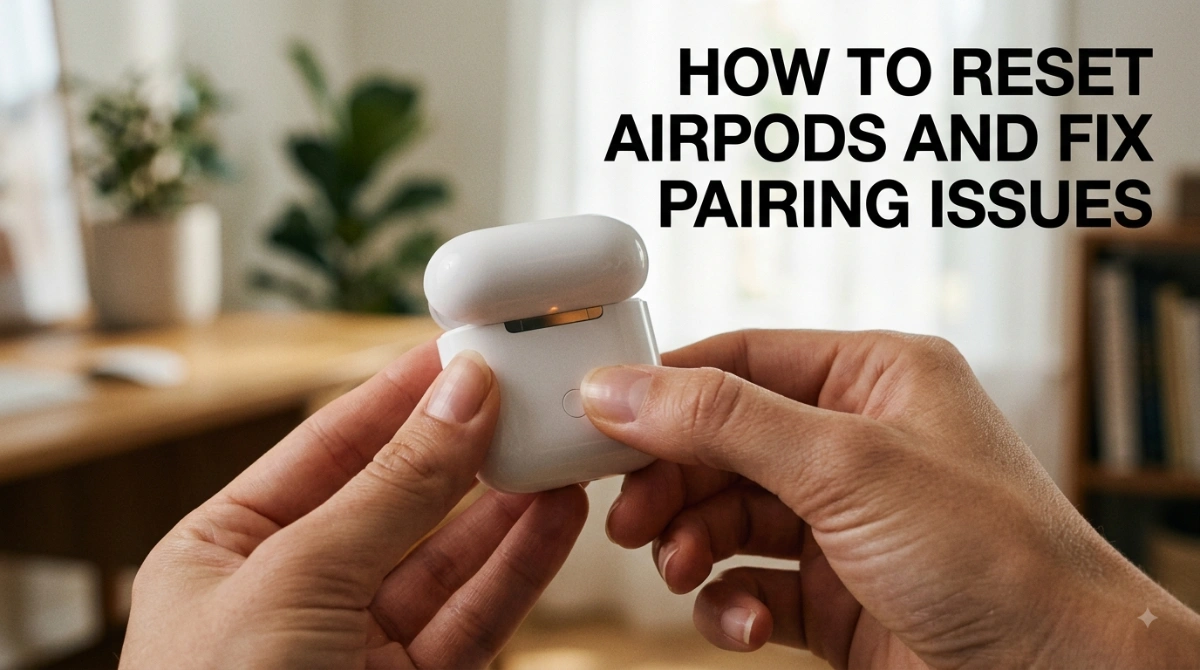

How to Reset AirPods and Fix Pairing Issues
If you need to know how to reset AirPods, start by identifying your model. Most AirPods cases reset with the small setup button on the back, while AirPods 4 and AirPods Pro 3 reset through taps on the front of the case.
A completed reset is easy to recognize. The case light flashes amber and then white, signaling that the AirPods are ready to be paired again.
Start With the Basics
A reset is most useful for connection and setup problems. Before learning how to reset Airpods, make sure the charging case and both AirPods have power, then check that Bluetooth is turned on for the phone, tablet, or computer you plan to use.
Resetting may be appropriate if:
- AirPods will not appear in available Bluetooth devices
- Pairing stops midway or fails repeatedly
- They stay linked to an old device
- Connections drop despite ordinary Bluetooth troubleshooting
- You are setting them up again after forgetting the old pairing
It is not a repair for physical damage, liquid exposure, worn-out batteries, or faults in an earbud, microphone, speaker, or case.
Remove the Old Connection
For a clean restart, forget the AirPods on any device where they are already paired.
On iPhone or iPad
- Open Settings and choose Bluetooth.
- Locate your AirPods.
- Tap the information button next to their name.
- Choose Forget This Device, then confirm.
If the AirPods are not displayed, simply proceed to the model-specific reset instructions.
On Android, Windows, or Other Devices
Open the device’s Bluetooth settings and select the option to forget or unpair your AirPods if they are listed. You can then reset the AirPods and create a new Bluetooth connection afterward.
Pick the Matching Procedure
The correct how to reset airpods method depends on the model.
| AirPods type | What to use | Completion signal |
| AirPods 1, 2, or 3 | Rear setup button on the case | Amber flash, then white flash |
| AirPods Pro or AirPods Pro 2 | Rear setup button on the case | Amber flash, then white flash |
| AirPods 4 | Front of case; no rear setup button | Amber flash, then white flash |
| AirPods Pro 3 | Front of case; no rear setup button | Amber flash, then white flash |
| AirPods Max | Digital Crown and Noise Control button | Amber flash, then white flash |
Reset AirPods With a Rear Button
This procedure applies to AirPods 1, 2, and 3, as well as AirPods Pro and AirPods Pro 2.
- Put both earbuds in the charging case.
- Close the lid and wait 30 seconds.
- Open the lid.
- Hold the setup button on the back of the case for about 15 seconds.
- Let go after the status light flashes amber and then white.
Keep the lid open when you are ready to reconnect.
Reset AirPods 4 and AirPods Pro 3
These newer cases do not have the back setup button. Instead, the status light guides a three-part double-tap sequence.
- Place both AirPods in the case, close it, and wait 30 seconds.
- Open the lid.
- Double-tap the front of the case while the status light is on.
- Double-tap the case front again when the light flashes white.
- When that white light flashes faster, double-tap the case front a third time.
- Wait for the amber flash followed by white.
The white flash at the end indicates the AirPods are back in pairing mode.
Reset AirPods Max
AirPods Max use the controls on the headphones, not a charging-case process. If they will not charge or restarting them has not resolved the problem, use the full reset sequence.
- Press and hold the Noise Control button and the Digital Crown together.
- Keep holding for about 15 seconds.
- Release the buttons after the LED flashes amber, then white.
- Pair the headphones again with your preferred device.
An amber-only flash indicates a restart. The reset is complete only after the LED also flashes white.
Pair Your AirPods Again
Once you know how to reset airpods and the reset is complete, you need to reconnect them to your device.
With standard AirPods or AirPods Pro, leave the earbuds in the case and open its lid. Place the case close to the device you want to connect.
On an iPhone or iPad, follow the prompt that appears on screen.
For Android, Windows, and other Bluetooth devices:
- Check that the case light is flashing white.
- Open Bluetooth settings on the device.
- Choose your AirPods from available devices.
- Accept any pairing request.
For AirPods Max, open Bluetooth settings after the reset and select the headphones when they appear.
If the Light Sequence Fails
If you are unsure how to reset airpods because the expected light sequence does not appear, use the troubleshooting steps below.
No Light Appears
Charge the AirPods and case, then repeat the correct reset process. Check that both earbuds are resting securely in the case and that the lid remains open when you begin the reset.
Amber Appears, but White Does Not
The reset has not finished. Close the AirPods case for 20 seconds, open it, and retry the right procedure for your model.
For rear-button models, hold the rear setup button for about 15 seconds. For AirPods 4 and AirPods Pro 3, repeat all three double-taps, moving to the next double-tap only when the status light changes as described.
They Reset but Will Not Pair
Forget the old Bluetooth entry again, turn Bluetooth off and back on, and try with the open charging case beside the device. Testing with another compatible device can help show whether the issue is specific to one phone, tablet, or computer.
If the AirPods will not enter pairing mode or remain unresponsive after charging and resetting, service may be necessary.
Know the Limits of a Reset
Knowing how to reset airpods can help with software or Bluetooth-related problems, but a reset cannot fix every AirPods issue.
A factory reset clears the existing pairing configuration. It does not erase photos, apps, messages, or other content from your phone; it simply requires you to set up the AirPods again.
Use a reset to resolve a software or Bluetooth problem. Look beyond resetting if you have a damaged case, poor battery health, charging failures, liquid damage, or persistent sound issues on one side.
Read more: how to reset AirPods 2
Frequently Asked Questions
A successful reset ends with an amber flash followed by a white flash. The white flashing light means the AirPods can be paired again.
No. AirPods 1, 2, and 3, plus AirPods Pro and AirPods Pro 2, use the rear setup button.
AirPods 4 and AirPods Pro 3 use the front of the case.
For supported rear-button models, hold it for about 15 seconds, until the status light flashes amber and then white.
Their current pairing configuration is cleared. You must connect them to your phone, tablet, computer, or other Bluetooth device again.
Yes. Reset the AirPods using the controls on their case, then choose them from the Android device’s available Bluetooth devices when the case light flashes white.
The old Bluetooth pairing may still be saved, Bluetooth may need restarting, or the AirPods may need charging and a proper reset. Persistent failure after these steps may require service.
It can help if the problem is a connection issue. If the problem continues, check charging and cleanliness or consider that hardware service may be needed.
A restart produces an amber LED flash. Continue holding the Noise Control button and Digital Crown until the LED flashes white as well to complete the reset.
No. Resetting can address pairing and software-related issues, but it does not repair a damaged or non-charging case.
If you need to know how to reset airpods, identify your model first, follow its matching reset procedure, wait for the amber-then-white light sequence, and then pair the AirPods with your device again.