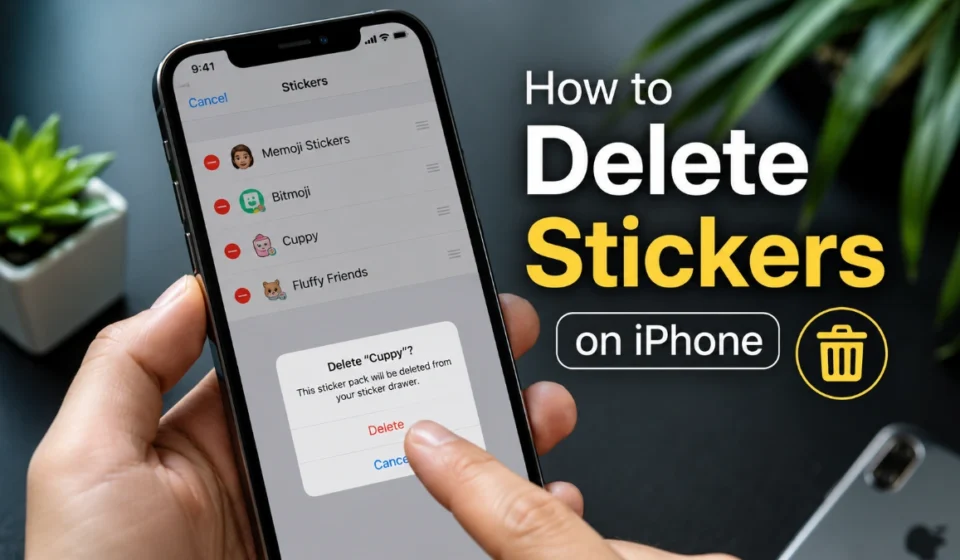

how to delete stickers on iphone: 6 Reliable Ways to Clean Up Messages
Looking up how to delete stickers on iphone can be confusing because iPhone does not treat every sticker as the same thing. First find where the sticker lives, then use the matching removal method below.
If it is a saved custom sticker
A saved custom sticker is usually one you made from a photo, a Live Photo, or a subject lifted from an image. It appears in your Stickers collection and can be reused in Messages.
To handle how to delete stickers on iphone for a saved sticker:
- Open the Photos app.
- Choose any photo and open its editing tools.
- Open Markup.
- Open the sticker controls, then select Add Sticker.
- Touch and hold the sticker you want to remove.
- Tap Remove.
This removes the saved sticker from your collection. Saved stickers sync through iCloud, so the deletion can also affect compatible devices signed in with the same Apple Account.
If it is attached to a text message
A sticker may be placed directly on a message bubble, often covering part of a text or sitting in a corner. In that case, deleting the saved sticker is not necessarily the right move.
For how to delete stickers on iphone from a message bubble:
- Open the relevant conversation in Messages.
- Touch and hold the message bubble with the sticker.
- Tap Sticker Details.
- Swipe left on the sticker.
- Tap the delete button.
This removes the sticker from that specific message. Apple documents this swipe-to-delete action for iPhone only. It does not automatically remove a saved copy of the same sticker from your collection.
If it is a Memoji sticker
Memoji stickers are generated from a Memoji character. They are not normally managed as individual sticker files, so removing one character’s sticker collection means deleting the Memoji.
Use these steps for how to delete stickers on iphone when the unwanted stickers belong to a Memoji:
- Open Messages and start a new message or open an existing conversation.
- Open the apps drawer and choose Memoji.
- Swipe to the Memoji you want to remove.
- Tap the additional-options button.
- Choose Delete.
Deleting the Memoji removes the character and its related sticker pack. Choose Edit instead if you simply want to update the face, hairstyle, clothing, or other features.
If the stickers came from an app
Downloaded sticker packs are commonly supplied through iMessage apps. They are separate from saved Live Stickers and Memoji stickers, so the Photos deletion route will not remove them.
For how to delete stickers on iphone when the source is a sticker app:
- Open Settings.
- Tap Apps.
- Tap Messages.
- Tap iMessage Apps.
- Turn off the app that supplies the unwanted stickers.
Turning the app off hides its Messages integration while leaving the app installed. Delete the app entirely if you no longer need it.
If you only want it removed from Recents
The Recents area can make a sticker look saved even when you are only seeing a recently used shortcut. Removing something from Recents may not remove the original saved sticker.
When how to delete stickers on iphone is really about a sticker that keeps coming back, check both places:
- Remove it from the saved sticker collection if you no longer want to use it.
- Remove it from a message bubble if it is still visible in an old conversation.
- Turn off the associated iMessage app if it belongs to a downloaded pack.
Treating these as separate locations prevents repeated attempts at the wrong type of deletion.
If you accidentally saved someone else’s sticker
Apple lets you save a Live Sticker someone else sent. A sticker sent normally can be saved with Save to Stickers, while a sticker placed on a message bubble can be saved through Sticker Details.
If you saved one by mistake, use the saved-custom-sticker path in Photos to remove it. Do not choose Save again; that command adds the sticker to your collection rather than removing it.
If Sticker Details is not available
Sticker Details appears when the sticker was placed on top of a message bubble. It is not the general delete menu for every sticker in the picker.
Try the correct branch:
- Use Photos and Markup for saved custom or Live Stickers.
- Use Sticker Details for stickers placed on a Messages bubble.
- Use the Memoji menu to delete a Memoji-generated sticker set.
- Use Settings > Apps > Messages > iMessage Apps for downloaded sticker packs.
Apple’s updated sticker features require compatible software, including iOS 17.2 or later for the message-sticker changes. If your menus do not match the steps, update iOS and then check which type of sticker you are trying to remove.
Before you delete anything
Use this final check before following how to delete stickers on iphone steps:
| Your goal | Correct action |
| Remove a reusable custom sticker permanently | Delete it from the saved sticker controls in Photos |
| Remove one sticker from a conversation | Use Sticker Details on the message bubble |
| Remove every sticker made by one Memoji | Delete the Memoji character |
| Stop stickers from a downloaded app | Turn off its iMessage App access or uninstall it |
| Stop seeing a recently used sticker | Check Recents, then remove the saved source if needed |
The quickest route to how to delete stickers on iphone is always the one that matches the sticker’s origin. Removing a sticker from a message, from a saved collection, and from an app drawer are separate actions with different results.
Read more: How to Delete Stickers on iPhone: Find the Right Removal Path Fast
Frequently Asked Questions
Yes. Touch and hold the message bubble, choose Sticker Details, swipe left on the sticker, and tap delete. The message remains in the conversation.
Saved stickers sync through iCloud, so removal can also take effect on compatible devices using the same Apple Account.
You may have removed it from Recents or from a message bubble while a saved copy still exists elsewhere. Check the sticker’s original location and remove it there.
Memoji stickers come from the Memoji character. To remove the related sticker set, delete the character; use Edit if you want to keep it and change its appearance.
Open Settings, tap Apps, select Messages, tap iMessage Apps, and turn off the relevant app. Uninstall the app if you do not want to keep it.
Apple documents the swipe-left deletion method for stickers attached to message bubbles as an iPhone-only action.
It saves another person’s Live Sticker to your own sticker collection. It does not remove a sticker from a message or delete it from your collection.