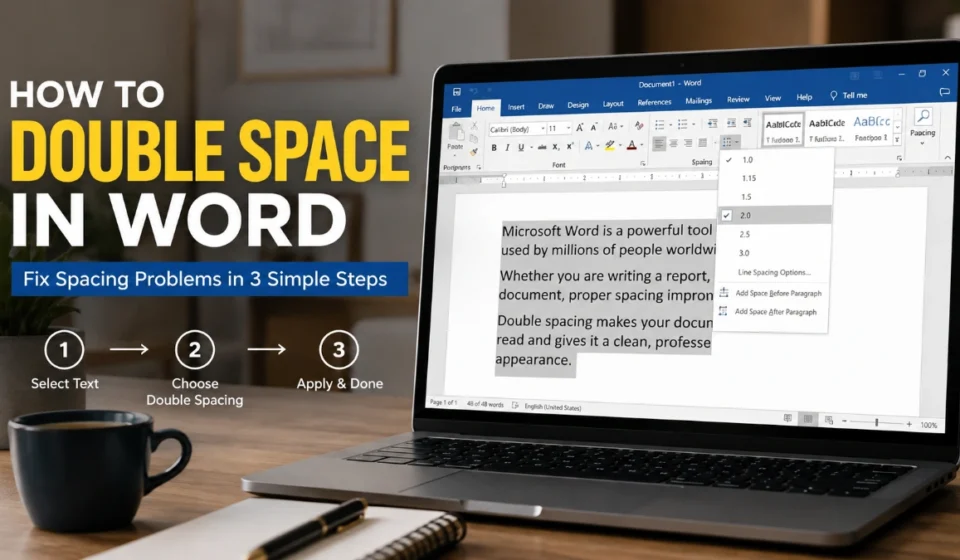

how to double space in word: 3 Easy, Powerful Formatting Fixes
If your document looks too tight, too wide, or inconsistent, first identify the scope: one paragraph, all text, or a default setting for future documents. Word treats line spacing and the blank space before or after paragraphs as separate controls.
Start with the symptom
Use this quick guide before changing anything:
| What you need | Where to change it | Best outcome |
| Only one section needs more space | Select those paragraphs, then use Home | Keeps headings and other content unchanged |
| The full document needs double spacing | Use Design > Paragraph Spacing | Applies a document-wide spacing choice |
| Text has large gaps between paragraphs | Open Line Spacing Options | Lets you adjust Before and After separately |
| New documents should begin double-spaced | Change the default paragraph settings | Applies to future documents based on the Normal template |
This decision-first approach makes how to double space in word easier because it prevents you from applying a document-wide change when the problem is limited to a few paragraphs.
Double-space one section
Use this method for a body paragraph, a quotation, a letter section, or any selected block of text.
- Select one or more paragraphs.
- Go to Home > Line and Paragraph Spacing.
- Choose Line Spacing Options.
- In Line spacing, select Double.
- Select OK.
This is the most controlled answer to how to double space in word because it changes only the paragraphs you selected. In Word for Windows, press Ctrl + A first if you want to select all text before using the same controls.
Double-space the document
For Word for Windows, you can apply a document-level paragraph-spacing choice through the Design tab.
- Open Design.
- Select Paragraph Spacing.
- Choose the double-spacing option available in your document.
After applying it, inspect headings, lists, tables, text boxes, and pasted content. These elements can carry separate formatting, so a document-level setting may not make every item look identical.
When readers search how to double space in word for an essay or report, this is usually the quickest route when most of the document should follow the same rule.
Remove unwanted blank gaps
Double line spacing affects the distance between lines inside a paragraph. It is different from paragraph spacing, which controls the vertical space before or after a paragraph.
To fix a document that looks too spread out:
- Select the affected paragraphs.
- Go to Home > Line and Paragraph Spacing > Line Spacing Options.
- Confirm that Line spacing is set to Double.
- Check the Before and After values.
- Reduce those values if the document requirement does not call for extra paragraph gaps.
- Select OK.
This distinction is the most useful troubleshooting point in how to double space in word: setting lines to double spacing does not automatically remove added space around paragraphs.
Make it the default
If you create many documents with the same spacing requirement, set double spacing as the default instead of repeating the adjustment in every new file.
- Go to Home > Line and Paragraph Spacing > Line Spacing Options.
- Under Spacing, choose Double in the Line spacing box.
- Review Before and After values.
- Select Set as Default.
- Choose All documents based on the Normal template.
- Select OK.
Microsoft documents this as a setting for future documents based on the Normal template, so it is best used only when double spacing is your usual starting format.
For regular coursework, manuscript drafts, or internal templates, how to double space in word becomes a one-time preference rather than a repeated manual task.
When formatting still differs
If only some paragraphs resist the change, check them individually rather than repeatedly applying a document-wide option.
- A single paragraph looks different: Select it and review its Line Spacing Options.
- Pasted content does not match: Check its paragraph formatting; copied text may retain separate settings.
- Large white gaps remain: Reduce paragraph Before or After spacing if appropriate.
- A heading behaves differently: Review its separate style or paragraph settings.
- The whole document changed too much: Use Design > Paragraph Spacing to return to the relevant style-set option, then format only the intended paragraphs.
Use this diagnostic order when how to double space in word produces inconsistent results: first confirm the selected scope, then check line spacing, then inspect paragraph-before and paragraph-after spacing.
Read more: How to Double Space in Word: A 3-Step Guide for Clean Formatting
Frequently Asked Questions
In Word for Windows, press Ctrl + A to select all text, then go to Home > Line and Paragraph Spacing > Line Spacing Options and choose Double. You can also use Design > Paragraph Spacing for a document-wide option.
Double spacing changes the distance between lines within a paragraph. Paragraph spacing adds vertical space before or after paragraphs.
Your Before or After paragraph settings may add extra space. Open Line Spacing Options and review those values.
Yes. In Line Spacing Options, choose Double, select Set as Default, then apply it to documents based on the Normal template.
It can, but tables, headings, text boxes, and pasted elements may use their own formatting. Check them after applying a broader document setting.