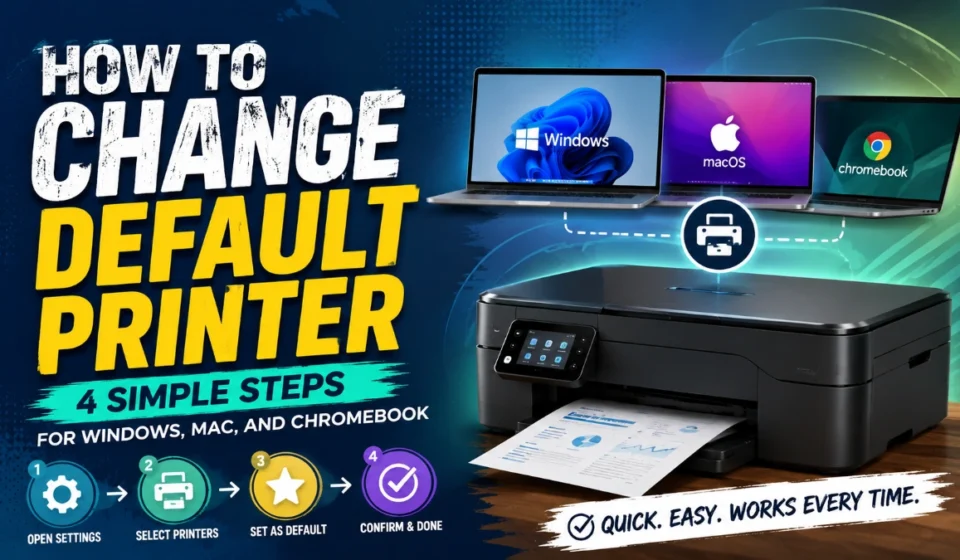

how to change default printer : 3 Powerful and Reliable Fixes
Your default printer is the device automatically selected when you open a print dialog. Choose one fixed printer for reliable everyday printing, or use the last printer used if you regularly print in different locations.
Start with the right choice
Before you how to change default printer settings, decide how you normally print.
| Printing habit | Best choice |
| You use one printer most of the time | Set that named printer as the default |
| You print at home and work | Use the last printer used option |
| You occasionally save documents as PDFs | Select a PDF destination for that specific job |
| You print from a Chromebook | Save your preferred compatible printer to your profile |
A default printer is simply the device preselected by your operating system. You can still choose a different printer for an individual print job, and some applications may remember a previous choice.
Windows: set one printer
To how to change default printer settings in Windows 11 or Windows 10:
- Open Start > Settings > Bluetooth & devices > Printers & scanners.
- Under Printer preferences, turn off Let Windows manage my default printer.
- Select the printer you want to use.
- Choose Set as default.
- Check that the printer status says Default.
Turn off Windows automatic management only when you want the same printer to remain selected. If you do not see Set as default, confirm that automatic default-printer management is switched off.
Windows: use the last printer
Windows can automatically select the last printer you used instead of keeping one fixed device.
- Open Start > Settings > Bluetooth & devices > Printers & scanners.
- Under Printer preferences, turn on Let Windows manage my default printer.
This setting suits people who print to different printers in different places. If Windows keeps choosing an unwanted printer, return here, turn the option off, and set your preferred printer manually.
Mac: select a default
To how to change default printer preferences on a Mac:
- Open the Apple menu > System Settings.
- Select Printers & Scanners.
- Open the Default printer menu.
- Choose the printer you want preselected.
Choose a named printer for a fixed default. Choose Last Printer Used if you prefer macOS to remember the printer you last used on that network location, such as your home Wi-Fi or workplace network.
You can also Control-click a printer in the Printers list and select Set Default Printer.
Chromebook: save your printer
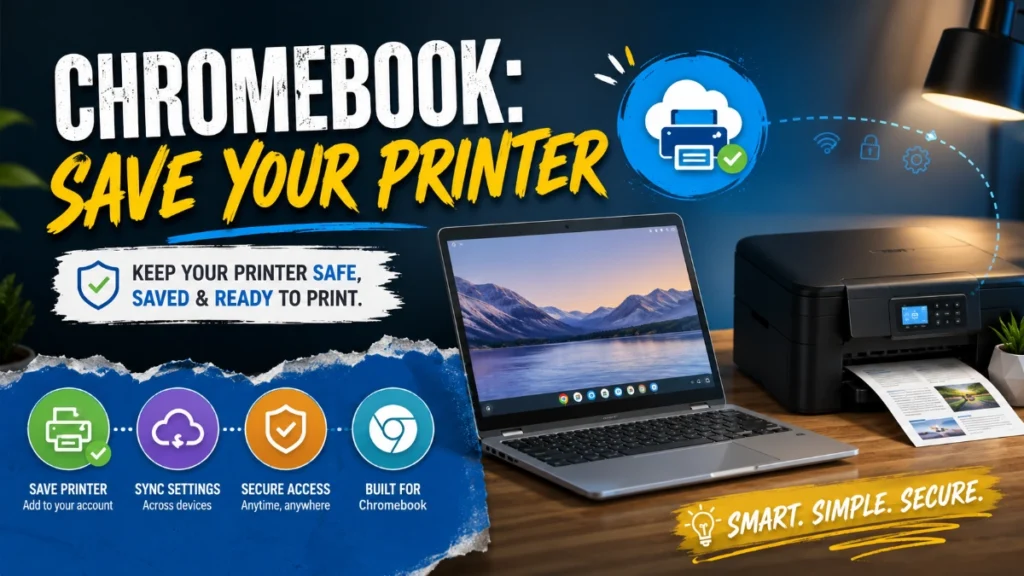
To how to change default printer settings on a Chromebook:
- Turn on the printer.
- Connect the printer and Chromebook to the same internet network, or connect a compatible printer by USB.
- Select the time in the bottom-right corner, then open Settings.
- Under Device, select Printers and scanners > Print.
- Under Other available printers, select Save beside the printer.
- Confirm that it appears at the top of Your saved printers.
Saving a printer to your Chromebook profile makes it the default. If it is not listed, press Ctrl + P, open the destination list, select See more, and choose the printer; ChromeOS checks compatibility when you select it.
Chromebooks support compatible internet-connected and USB printers, but not Bluetooth printing.
Check the result
After you how to change default printer settings, open a document and select Print. Your chosen device should appear first in the printer or destination field.
If another printer still appears, quit and reopen the application. The operating-system setting may be correct, while the application continues to display a printer it previously used. Choose the correct device for the current job, then check the app’s own print settings if it keeps overriding your preference.
Fix common problems
| Problem | Likely reason | What to do |
| Windows chooses a different printer | Automatic default management is on | Turn it off and manually set the intended printer |
| Mac changes printer at home or work | Last Printer Used is active | Select a specific named printer |
| Chromebook cannot find the printer | The device is not on the same network, is not connected by USB, or is incompatible | Reconnect it, check compatibility, and save it again |
| The printer is selected but jobs do not print | The printer is offline or unreachable | Restore power, USB, Wi-Fi, or network access |
When you how to change default printer options, the selected device must still be installed, switched on, and available on the relevant connection.
Avoid these errors
- Expecting one fixed Windows printer while Let Windows manage my default printer remains enabled.
- Selecting Last Printer Used on a Mac when you want the same device everywhere.
- Making a virtual PDF destination your regular default; it normally opens a file-saving workflow rather than sending a job to a physical printer.
- Deleting a printer queue from a work or school device without checking with IT; managed printers may be required or reinstalled automatically.
- Confusing a default printer with paper size, colour, print quality, or double-sided preferences.
If the printer is missing
If you cannot see the printer, resolve that before you how to change default printer settings.
- Check that the printer is powered on and does not show an error.
- Ensure the computer and a Wi-Fi printer use the intended network.
- Reconnect a USB cable and follow any system prompts.
- Add the printer again through the operating system if it is no longer listed.
- Ask your IT administrator for help before changing or deleting printers on a managed company or school device.
Read more: How to change the default printer : 3 Reliable Methods for Any Device
Frequently Asked Questions
Windows can use the last printer you printed to when Let Windows manage my default printer is on. Turn the setting off, then choose the printer and select Set as default if you want one fixed device.
It tells macOS to remember the printer you used most recently at the current network location. Your Mac may therefore select one printer at home and another at work.
Yes. The default printer is the starting selection in the print dialog; you can select another available printer for an individual job.
The printer may be offline, disconnected, out of range, or unavailable on the network. Check its power and connection before retrying.
Save it under Settings > Device > Printers and scanners > Print. A saved printer becomes the default for your Chromebook profile.
No. Chromebook printing supports compatible printers connected through the internet or USB, not Bluetooth.
No. Default-printer selection chooses the device. Print quality, paper size, colour, and duplex options are configured separately in printer preferences or the print dialog.