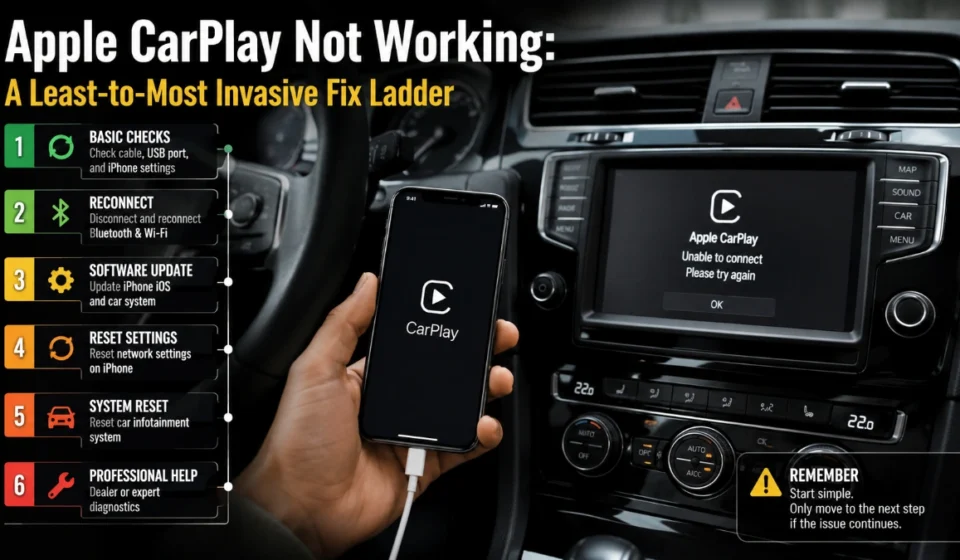

apple carplay not working: The Simple 6-Step Fix Ladder
Before diagnosing anything, it’s worth trying the fixes in order of how much they disrupt — because the cause of Apple CarPlay not working is just as often a stale cable connection as it is a deeper setting, and there’s no reason to reset your entire network configuration when a restart would have done the job. This ladder starts with the fastest, least disruptive step and only escalates when the previous one fails.
Step 1: Restart Both Devices
The lowest-effort fix for Apple CarPlay not working is also the most commonly skipped. Restart the iPhone fully, then restart the vehicle’s infotainment system — either through its own power cycle or by turning the ignition off, waiting a couple of minutes for it to fully power down, and starting again. A surprising share of one-off CarPlay failures are simply a stuck connection that a fresh boot clears on both sides.
Step 2: Check the Cable and Port (Wired CarPlay)
If Step 1 doesn’t resolve wired Apple CarPlay not working, the cable is the next-most-likely culprit. Many USB cables and ports are built for charging only and don’t carry the data signal CarPlay needs, so an iPhone can charge normally while CarPlay never launches. Swap in the manufacturer’s original cable, use the port specifically labeled for CarPlay or USB rather than an auxiliary charging port, and remove any USB-C-to-Lightning adapter you might be using, since the adapter itself is a common point of failure.
Step 3: Verify Bluetooth, Wi-Fi, and Auto-Join (Wireless CarPlay)
For wireless Apple CarPlay not working, the next step up the ladder is confirming all three wireless prerequisites are active. Wireless CarPlay requires Bluetooth and Wi-Fi to both be turned on, plus Wi-Fi Auto-Join enabled — Bluetooth alone is not sufficient, and this single gap is behind a large share of wireless failures. Check Settings > Bluetooth and Settings > Wi-Fi, and while there, temporarily disable any active VPN or security app, since these can interfere with the local network traffic wireless CarPlay depends on.
Step 4: Check Screen Time and Siri Settings
This step is slightly more invasive because it involves account-level settings rather than a simple toggle. Screen Time’s Content & Privacy Restrictions include an Allowed Apps list, and if CarPlay isn’t permitted there, it won’t launch no matter what else is fixed — check Settings > Screen Time > Content & Privacy Restrictions > Allowed Apps. Separately, confirm Siri is enabled under Settings > Siri & Search, since CarPlay’s setup and voice functions depend on it being active.
Step 5: Forget the Car — Properly, on Both Sides
If Apple CarPlay not working still isn’t resolved, or if it works in one car but not another, a stale pairing record is the likely cause, and this is where a full reset matters more than a partial one. On the iPhone, go to Settings > General > CarPlay, select the car, and tap Forget This Car; for wireless setups, also forget the device under Settings > Bluetooth and forget the network under Settings > Wi-Fi, since a partial forget on just one of these three can leave a stale connection behind. On the car’s side, find the Bluetooth, Devices, or Connections menu in the infotainment settings and remove the iPhone from the paired-device list there too.
Forgetting the car this way removes only the pairing information — it does not delete photos, contacts, or any other personal data. Restart both devices again after forgetting, then reconnect via cable or Bluetooth as if pairing for the first time; give the first session a full minute, since the initial CarPlay handshake is typically the slowest one.
Step 6: Reset Network Settings (Last Resort Before Escalating)
If none of the previous five steps has resolved Apple CarPlay not working, resetting network settings is the most invasive on-device fix worth trying before contacting Apple or the manufacturer. It clears saved Wi-Fi networks, Bluetooth pairings, and VPN configurations that may have become corrupted, while leaving photos, apps, and other personal data untouched. Find it under Settings > General > Transfer or Reset iPhone > Reset > Reset Network Settings — but be aware it also erases every saved Wi-Fi password, so it’s a genuine last step rather than a first move.
If the Iphone Update Is the Real Cause
Some readers reach Step 6 because Apple CarPlay not working started right after updating to iOS 26.x, with reports of dropped wireless connections and audio glitches following the update. These reports are consistent across Apple’s own community forums, but they aren’t confirmed as affecting every device — treat an iOS update as a plausible contributing factor, not a guaranteed explanation. As of this guide’s verification in August 2026, Apple’s iOS 26.6 developer release notes list no CarPlay-specific fix, so updating alone shouldn’t be assumed to resolve an update-related problem; if wired CarPlay works while wireless Apple CarPlay not working persists, that pattern points toward the update rather than the hardware.
If the Vehicle Itself Is the Limit
Before escalating further, it’s worth ruling out the vehicle as the actual ceiling on what’s possible. CarPlay support — and specifically whether it’s wired-only, wireless-capable, or unavailable — varies by brand, model year, and trim, even across versions of what looks like the same car. If Apple CarPlay not working coincides with a new or newly purchased vehicle, confirm with the manufacturer or dealer which CarPlay mode that exact trim supports before working through the ladder again.
When to Stop Troubleshooting and Escalate
If the same iPhone fails across multiple confirmed-compatible vehicles, or the connection works briefly after each fix and then breaks again following iOS updates, that pattern points to Apple support and a software-side issue. If only one specific vehicle is affected and its compatibility is confirmed, the vehicle manufacturer’s support line is the more direct next step than continuing to adjust iPhone settings.
Frequently Asked Questions
Restart both the iPhone and the car’s infotainment system — a large share of sudden, one-off CarPlay failures clear with a simple reboot on both sides before any deeper fix is needed.
For wireless CarPlay, forgetting the car in CarPlay settings alone can leave a stale Bluetooth or Wi-Fi entry behind, so forgetting the device in Bluetooth settings and the network in Wi-Fi settings too gives a cleaner reset.
Forget the car first, since it’s less disruptive and resolves most single-vehicle issues; save Reset Network Settings for last, since it erases every saved Wi-Fi password on the device.
Yes, the adapter itself can be a point of failure for wired connections, so testing with a direct cable and no adapter helps isolate whether it’s the cause.
Apple’s iOS 26.6 developer release notes don’t list a CarPlay-specific fix, so updating is good general maintenance but isn’t guaranteed to resolve update-related CarPlay problems on its own.
This almost always points to a corrupted pairing record in the affected vehicle rather than a wider iPhone issue, and it’s typically resolved by fully forgetting that specific car and re-pairing it.
If CarPlay fails the same way across multiple confirmed-compatible vehicles, the issue is likely iPhone-side; if it only happens in one car, check that car’s specific CarPlay support and compatibility first.